

Analyzing Your Results
Exporting Data

Hi there, it's Nevrie, the co-founder of WonderForm.
While our dashboard is great for a quick look, we know that sometimes you need to take your data elsewhere—whether that’s into a CRM, a custom spreadsheet, or a presentation for your team.
WonderForm makes it easy to take your results with you in a universal format.
So let's get started!
1. Login
To start, you'll need to login to your WonderForm account. You can do so by clicking on the following link: Login.
2. Locate the Export Button
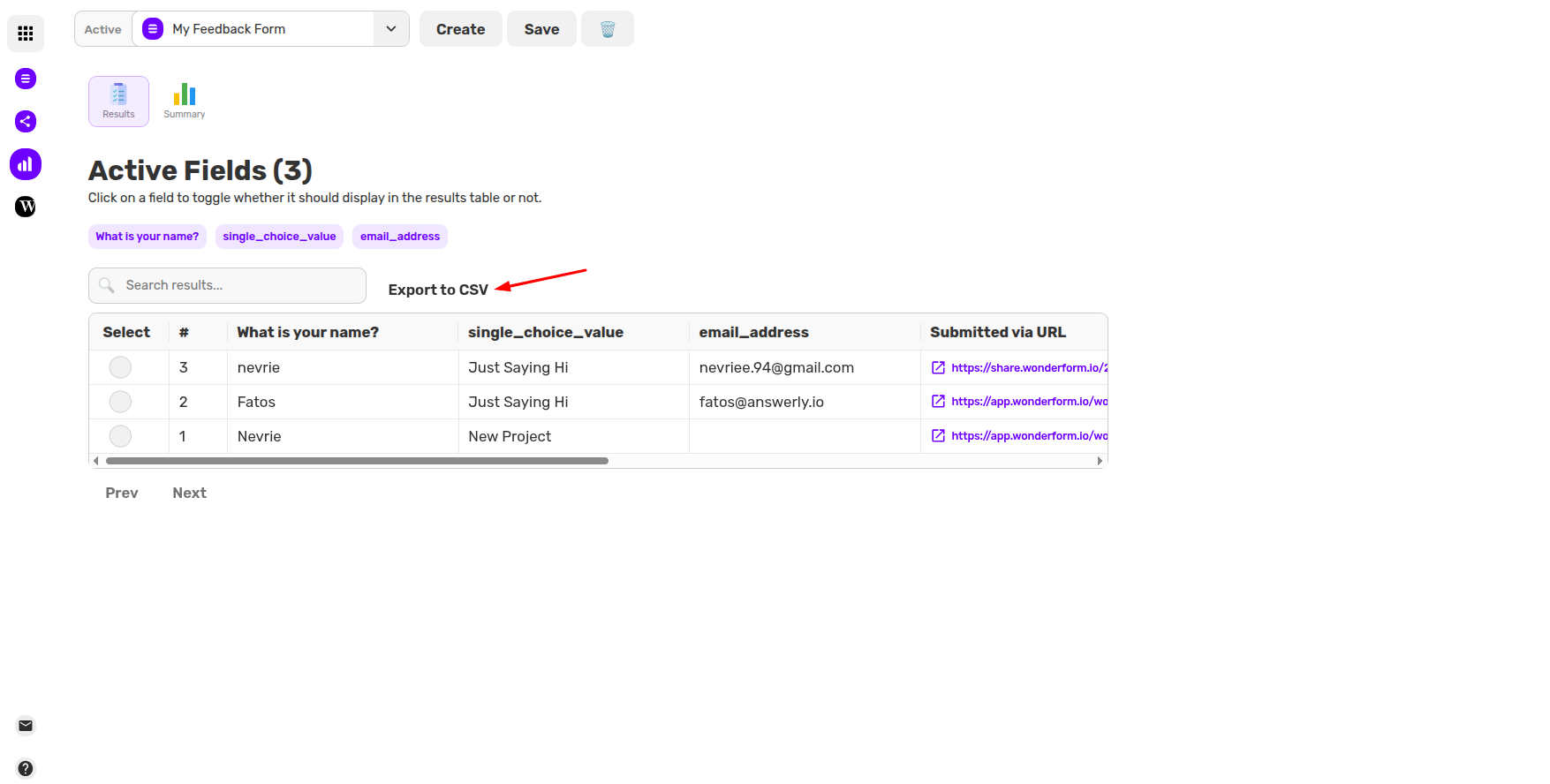
Navigate to your Results page. Just above the data table and next to the search bar, you will see the Export to CSV button.
3. Generating Your Export
Click the Export to CSV button. WonderForm will instantly generate a file containing every submission currently visible in your database.
4. What’s Included?
Your CSV export isn't just a copy of the table; it's a comprehensive data dump that includes:
- Every answer provided by the participant.
- The exact timestamp of the submission.
- The source URL and any campaign parameters (URL Params) used.
- Unique identifiers for each lead.
5. Why Export to CSV?
CSV (Comma Separated Values) is the "universal language" of data. You can use this file to:
- Import into CRMs: Easily upload your leads into tools like HubSpot, Pipedrive, or Salesforce.
- Deep Analysis: Open the file in Excel or Google Sheets to create pivot tables and charts.
- Secure Backups: Keep a physical copy of your lead data for your own records.
That's it!
Your data is yours to keep and move wherever your business needs it to go.
Happy analyzing! 📁