

Sharing & Distribution
URL Source Tracking

Hi there, it's Nevrie, the co-founder of WonderForm.
One of the most powerful ways to optimize your marketing is knowing exactly where your leads are coming from. Whether you are running multiple ad campaigns, sending different email blasts, or posting on various social platforms, WonderForm's URL Source Tracking lets you identify the origin of every single response without setting up complex tracking pixels.
So let's get started!
1. Login
To start, you'll need to login to your WonderForm account. You can do so by clicking on the following link: Login.
2. How URL Tracking Works
WonderForm is designed to automatically capture any parameters you add to the end of your form URL. You don't need to configure anything in the dashboard; just append your tracking tag to the link.
To track a source, simply add a question mark (?) followed by your tag to your sharing link.
Example:
If your original link is:
https://share.wonderform.io/your-form-id
You can change it to:
https://share.wonderform.io/your-form-id?facebook_ad
or
https://share.wonderform.io/your-form-id?newsletter_may
3. Viewing Your Source Data
Once a user submits a form using one of your tagged links, WonderForm captures that URL Param and stores it alongside their response.
To see this data:
- Select your form and click the Results icon (the chart icon) in the top-left sidebar.
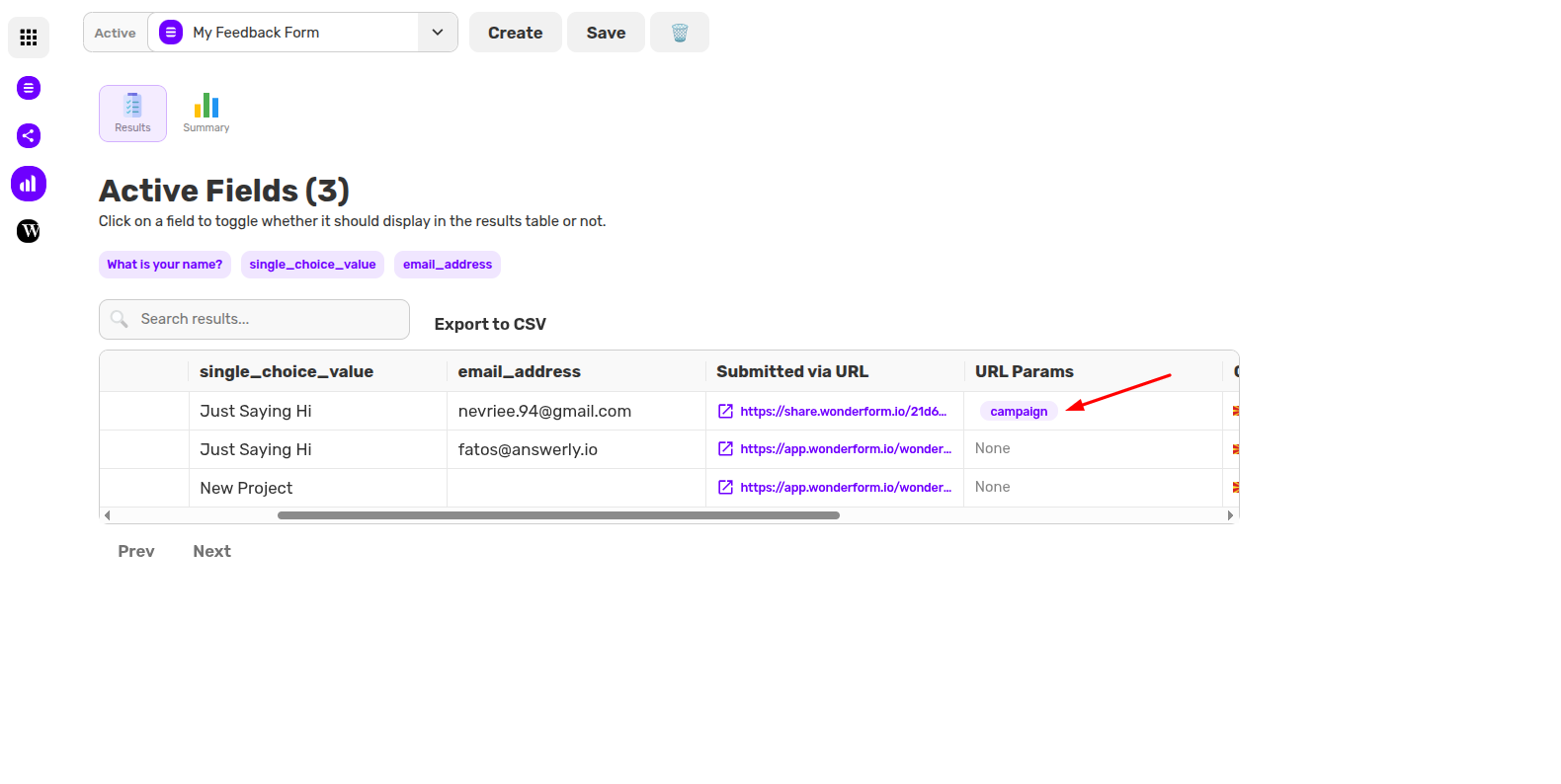
- In the results table, look for the column labeled URL Params.
- You will see your custom tags appear as purple pills (e.g., campaign or facebook_ad), telling you exactly which link that specific user clicked.
4. Why Use Source Tracking?
By using unique tags for different platforms, you can:
- Compare Platforms: See if you're getting more leads from LinkedIn or Twitter.
- Measure Ad Spend: Identify which specific ad creative is driving the highest quality submissions.
- Personalize Outreach: Know which newsletter a lead signed up from so you can tailor your follow-up.
5. Exporting for Analysis
If you need to do deeper data crunching, you can click the Export to CSV button at the top of your results table. Your source tags will be included in the export, allowing you to filter and sort your leads by campaign in Excel or Google Sheets.
That's it!
Stop guessing where your traffic comes from and start architecting your growth with clear data.
Happy tracking! 📈