

Analyzing Your Results
Managing Responses

Hi there, it's Nevrie, the co-founder of WonderForm.
Once your form is live and the submissions start rolling in, you need a clean way to digest that information. We’ve built a powerful, searchable results table that lets you filter through your lead data without leaving the dashboard.
So let's get started!
1. Login
To start, you'll need to login to your WonderForm account. You can do so by clicking on the following link: Login.
2. Access the Results Table
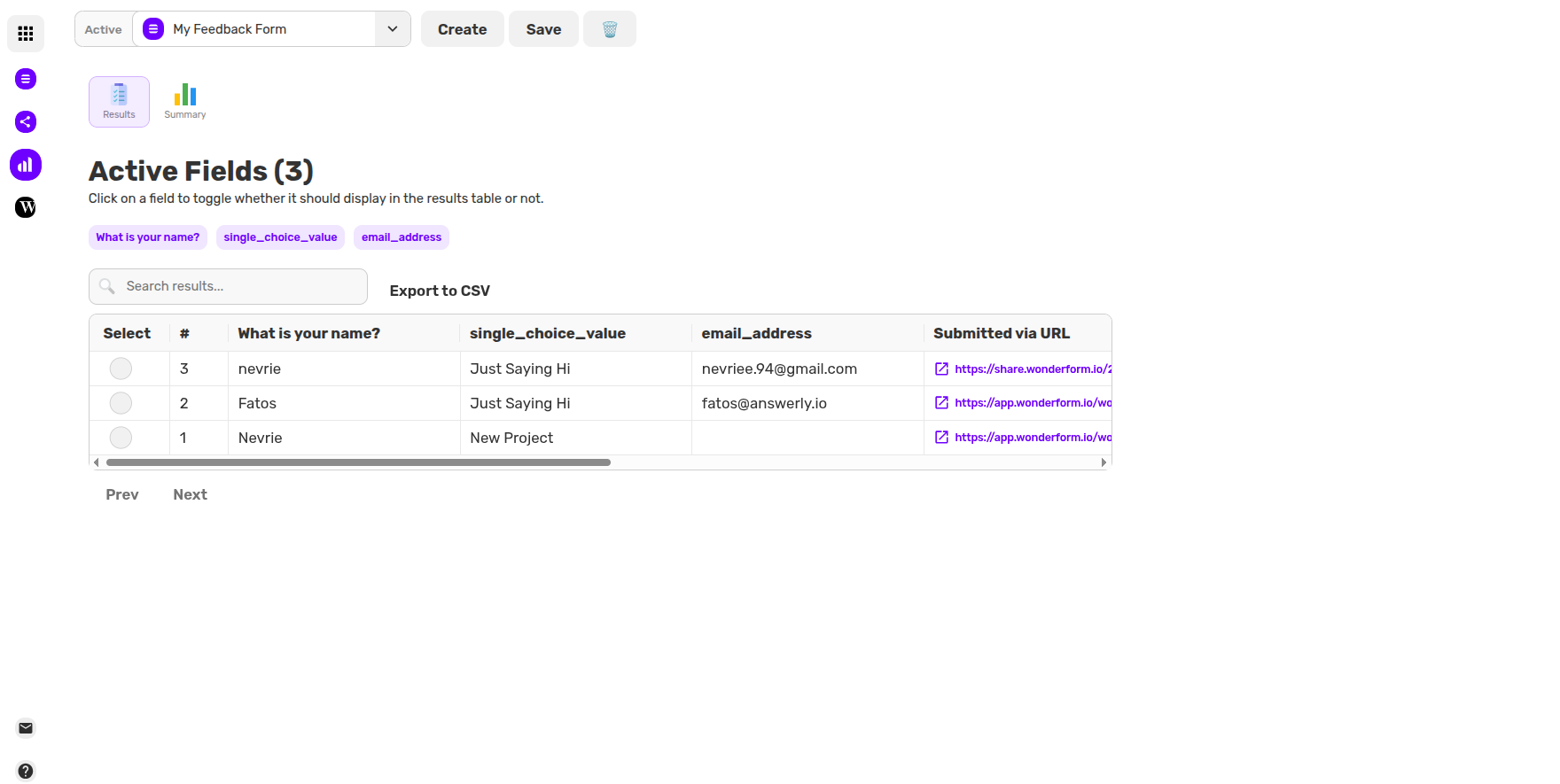
Select your form from the dashboard and click the Results icon (the chart symbol) in the top-left sidebar. This will open your response database.
3. Customizing Your View (Active Fields)
Sometimes you don't need to see every single column at once. Under the Active Fields section, you will see a list of purple pills representing every question in your form.
- Toggle Visibility: Click on a field name to toggle it on or off. If a field is purple, it will show up in the table. If it's grey, it’s hidden.
- Focus on What Matters: This is great for quickly glancing at specific data points, like just Email and Choice Value, without getting overwhelmed by the full schema.
4. Searching Your Results
If you are looking for a specific submission, you don't have to scroll through hundreds of rows. Use the Search results... bar above the table. You can search for:
- Specific names or email addresses.
- Specific answers (e.g., searching "New Project" to see all leads interested in that service).
- URL parameters/campaign tags.
5. Understanding the Metadata
Beyond the answers to your questions, the table also captures:
- Submitted via URL: The exact link the user used to reach your form.
- URL Params: Any campaign tags you added for source tracking.
That's it!
Managing your data should be as organized as the form that collected it.
Start exploring your insights! 🧐