

The Design Studio
Designing Your Form Page

Hi there, it's Nevrie, the co-founder of WonderForm.
In this article, I’ll show you how to take your technical form architecture and turn it into a beautiful, high-converting landing page.
The Look and Feel studio is where you control your brand's first impression. Whether you want a clean, minimalist setup or a full-screen visual experience, this is the place to do it.
So let's get started!
1. Login
To start, you'll need to login to your WonderForm account. You can do so by clicking on the following link: Login.
2. Access Look and Feel
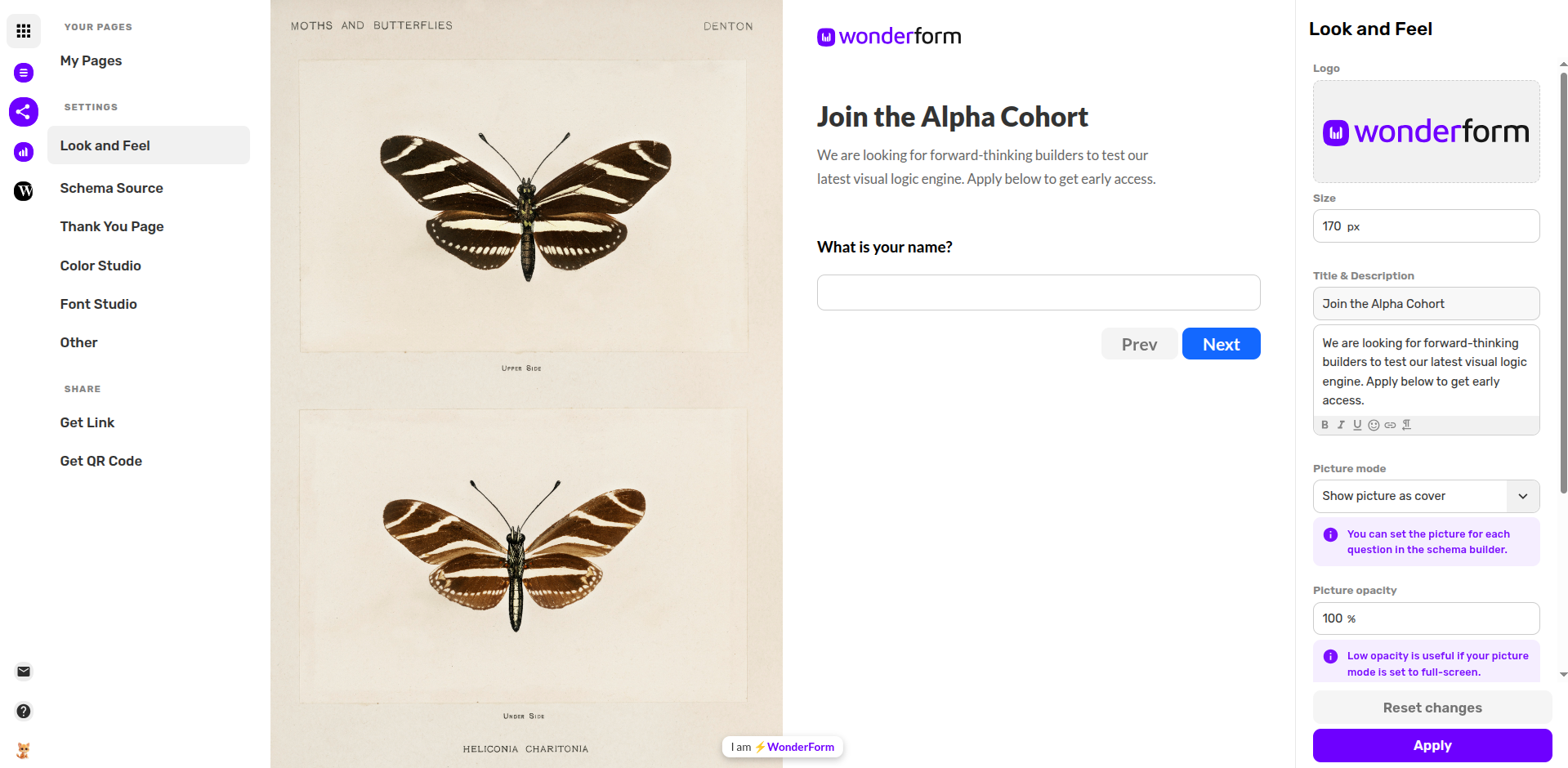
Once you have selected your form from the dashboard, click on the Look and Feel tab in the sidebar under the Settings category. This will open the visual editor with a live preview of your form.
3. Brand Identity (Logo & Headers)
The first step to making the form yours is setting your identity:
- Logo: Upload your company logo and adjust the Size (e.g., 40px) to ensure it sits perfectly at the top of your form.
- Title & Description: Give your page a clear headline and a helpful description. You can use the rich-text editor to add bolding, links, or lists to guide your users before they start.
4. Visual Atmosphere (Picture Mode)
WonderForm allows you to integrate beautiful imagery directly into the form experience:
- Picture Mode: Use the dropdown to choose how your image is displayed. You can show the picture as a side cover or set it to full-screen.
- Picture Opacity: If you are using a full-screen image, lowering the opacity is a great way to ensure your questions remain perfectly readable while still keeping the visual vibe.
5. Question Layout & Spacing
Finally, you can decide how the user interacts with your questions:
- Question Layout: Choose between One question per page (great for conversational flows) or List (best for shorter, technical forms).
- Space between questions: If you choose the List layout, you can adjust the pixel spacing (e.g., 50px) to give your content more room to breathe.
Once you are happy with the preview, click the blue Apply button at the bottom of the settings panel to save your design.
That's it!
Your form is no longer just a set of questions—it's a premium branded experience.
Have fun designing! 🎨