

The Design Studio
Customizing the Thank You Page

Hi there, it's Nevrie, the co-founder of WonderForm.
The user journey shouldn't just end abruptly when they hit submit. The Thank You Page is your final opportunity to leave a lasting impression, provide next steps, or simply celebrate a successful interaction.
We’ve designed our Thank You Page editor to feel less like a standard settings menu and more like a professional design tool—think Figma, but built directly into your dashboard.
So let's get started!
1. Login
To start, you'll need to login to your WonderForm account. You can do so by clicking on the following link: Login.
2. Access the Thank You Page Builder
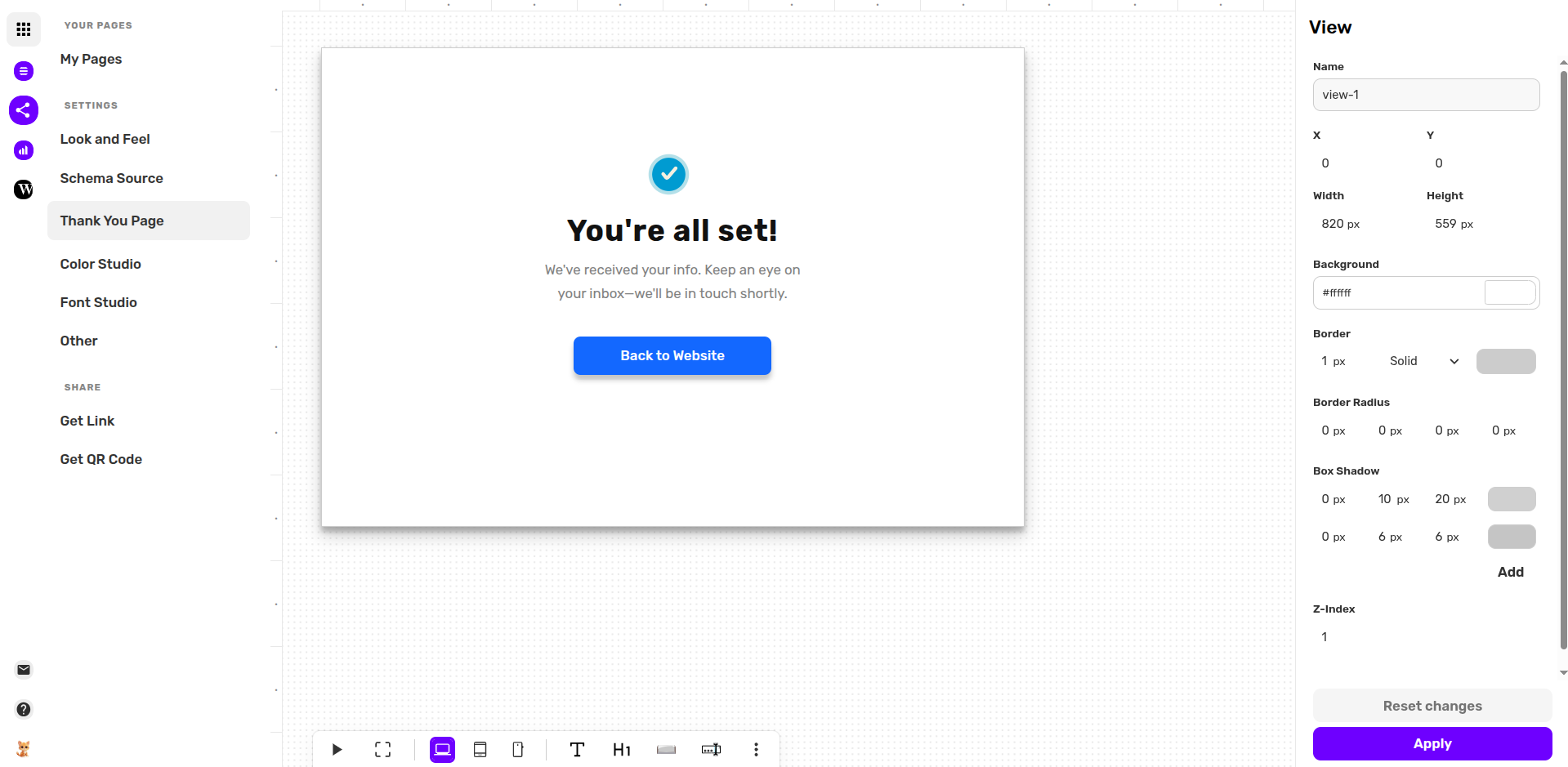
After selecting your form from your dashboard, click on the Thank You Page tab in the sidebar under the Settings category. This will launch the specialized canvas-based builder.
3. Designing on the Canvas
Unlike a traditional editor, this builder gives you a free-form canvas where you can drag, resize, and position elements exactly where you want them.
When you select the main View or any specific element, the right-hand sidebar provides deep property controls:
- Dimensions: Set precise X/Y coordinates and Width/Height for a pixel-perfect layout.
- Styling: Fully customize the background color, border styles, and Border Radius for those smooth, modern corners.
- Box Shadows: Add depth to your page or buttons with customizable shadows (adjusting X/Y offsets, blur, and spread).
4. Adding Dynamic Elements
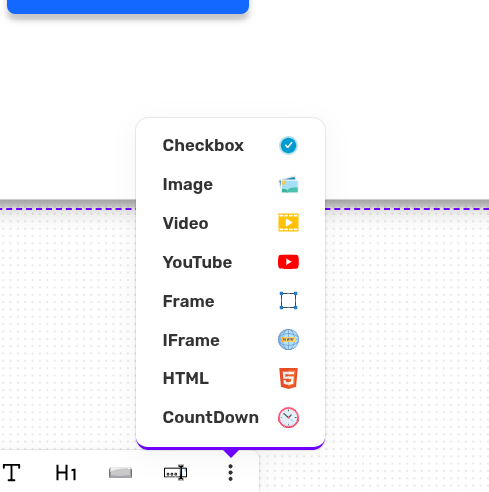
At the bottom of the builder, you’ll find a toolbar full of components to bring your page to life. By clicking the more (three dots) icon, you can access a variety of advanced elements:
- Multimedia: Drop in Images, Videos, or even a YouTube embed to give a personal video thank you.
- Technical Blocks: Use Frames, IFrames, or custom HTML to integrate external widgets or unique code snippets.
- Interactions: Add a CountDown timer for limited-time offers or use the Checkbox icon to visually confirm the submission.
- Typography: Use the standard heading and text tools to craft a message that resonates with your brand.
5. Saving Your Masterpiece
Once your layout is perfect, click the purple Apply button at the bottom right. Your users will now see this custom-designed page the moment they complete their journey.
That's it!
You're no longer just collecting data; you're creating a premium end-to-end experience.
Go ahead and build something memorable! 🎨