

The Design Studio
Color & Font Studio

Hi there, it's Nevrie, the co-founder of WonderForm.
In this article, I want to guide you through two of our most powerful customization tools: the Color Studio and the Font Studio.
While the "Look and Feel" settings handle your layout, these studios give you granular, pixel-perfect control over your brand's visual identity. Whether you need a high-contrast "Dark Mode" or a soft, organic palette, you can paint every corner of your form here.
So let's get started!
1. Login
To start, you'll need to login to your WonderForm account. You can do so by clicking on the following link: Login.
2. Access the Studios
Once you've selected your form, look at the sidebar under the Settings category. You will see individual tabs for both Color Studio and Font Studio.
3. Painting with the Color Studio
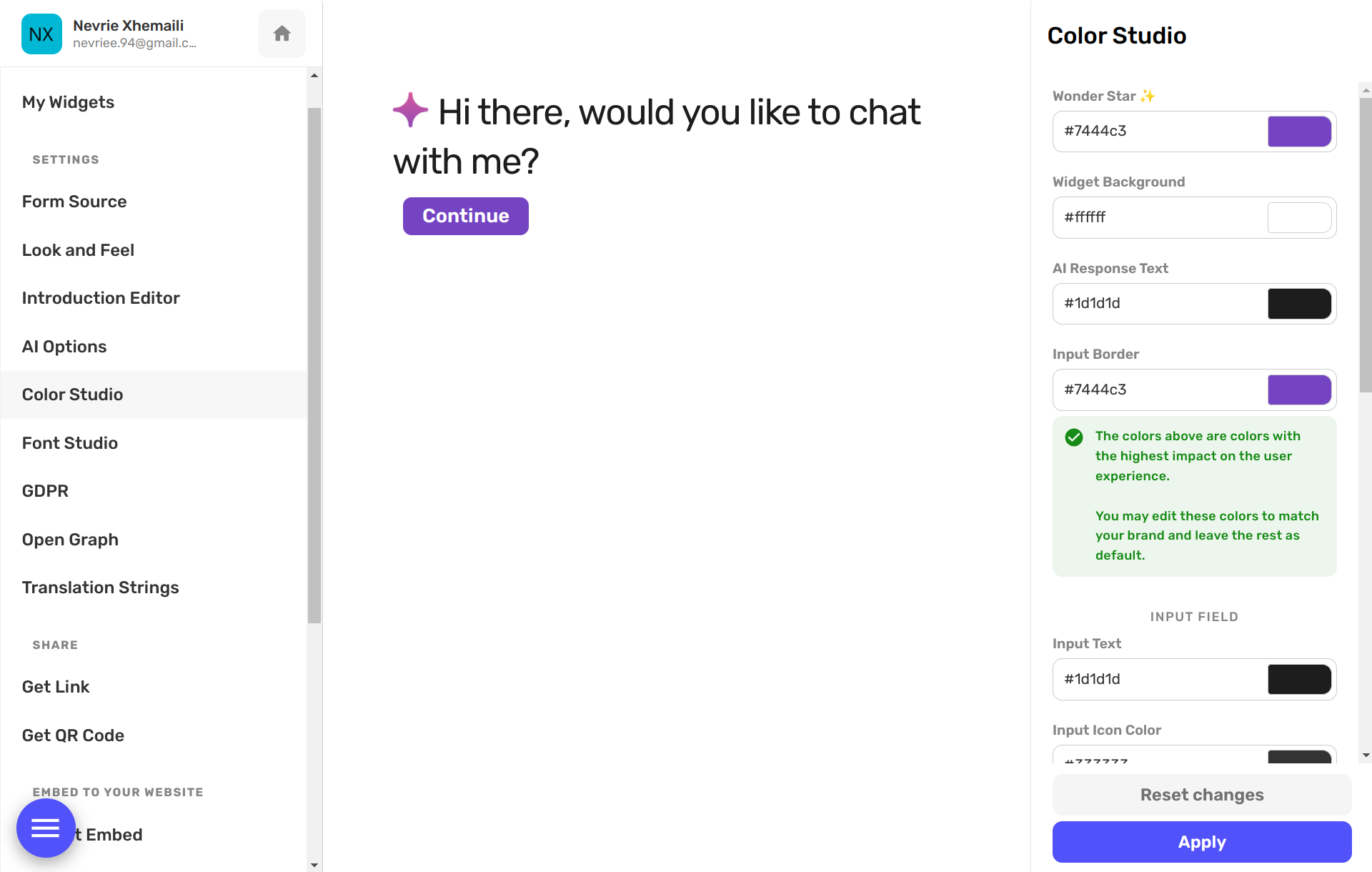
The Color Studio allows you to define the hex code for every element in your form. We’ve broken it down into sections so you can stay organized:
- Window: Set the primary background and the main title/description colors.
- Field & Input: Control the text, background, and border colors for your question fields. You can even set a specific Focus border color to highlight the active question.
- Specialty Components: Fine-tune the look of specific interactions like Dropdowns, Choices, Steppers, and Sliders. You can set unique colors for Selected states to make user choices clear.
- Button: Design your final call-to-action with custom text and background colors.
4. Typography in the Font Studio
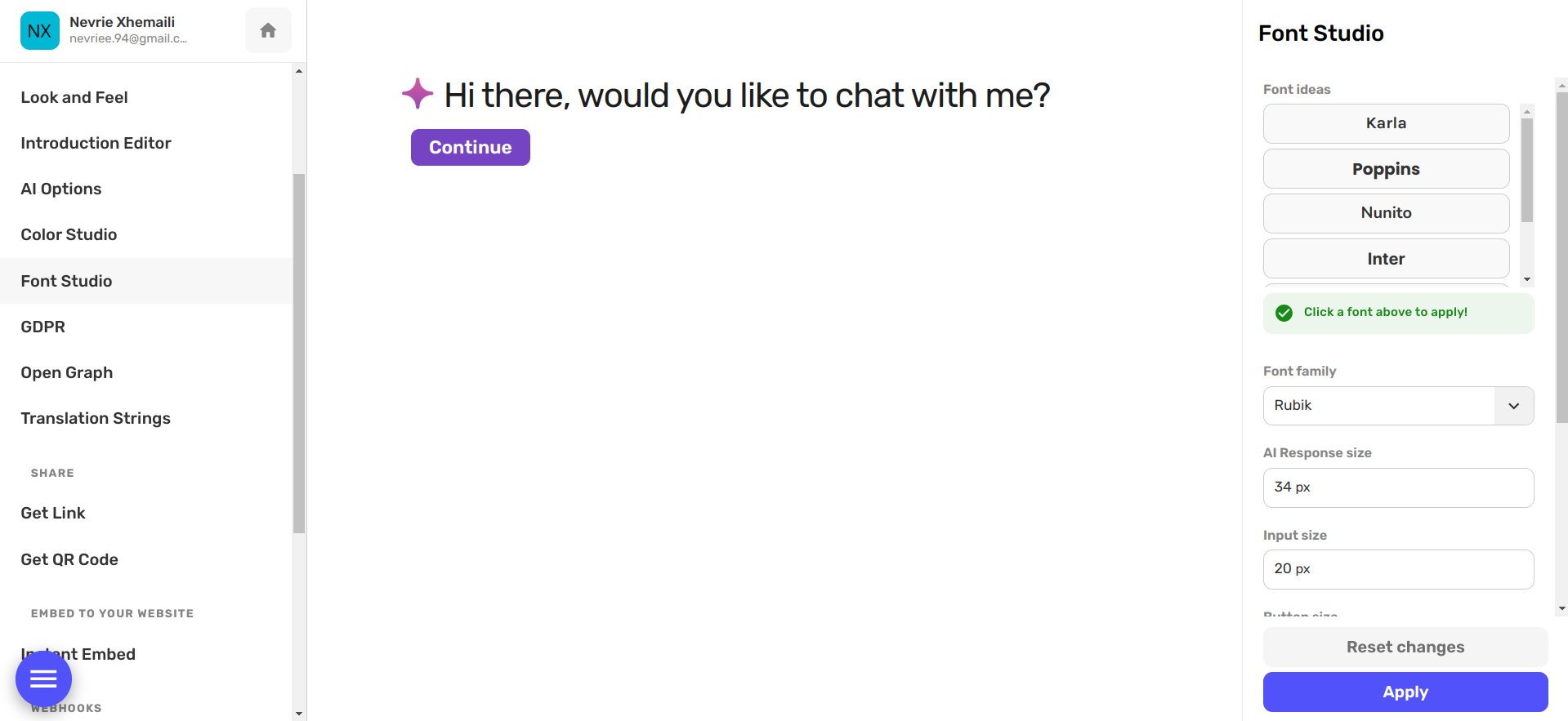
The Font Studio is where you define the hierarchy of your text. A well-scaled form is a readable form.
- Font Family: Choose the base typeface for your entire project (e.g., Inter).
- Window & Question Sizes: Set the specific pixel sizes for your page Title, Description, and the actual Question text.
- Input & Field Text: Adjust the size of the text users type in, as well as the text inside Choice buttons or Dropdown menus.
- Other Fields: You can even control the scale of specialized elements like Emojis and Stars to ensure your rating fields are high-impact.
5. Testing and Applying
Both studios feature a live preview, so you can see your changes in real-time. If you feel you've gone a bit too far with the customization, you can always hit Reset changes to go back to the defaults.
Once you’ve achieved the perfect look, click the purple Apply button to save your brand new style.
That's it!
Your form is now a true reflection of your brand. Pull out your palette and start painting. 🎨